Cloud Saves and Switching Phones: How to Keep Your Game Progress
Not every game saves progress the same way. How to check where your progress is stored, link accounts before you switch phones, and what to do when moving between iPhone and Android.
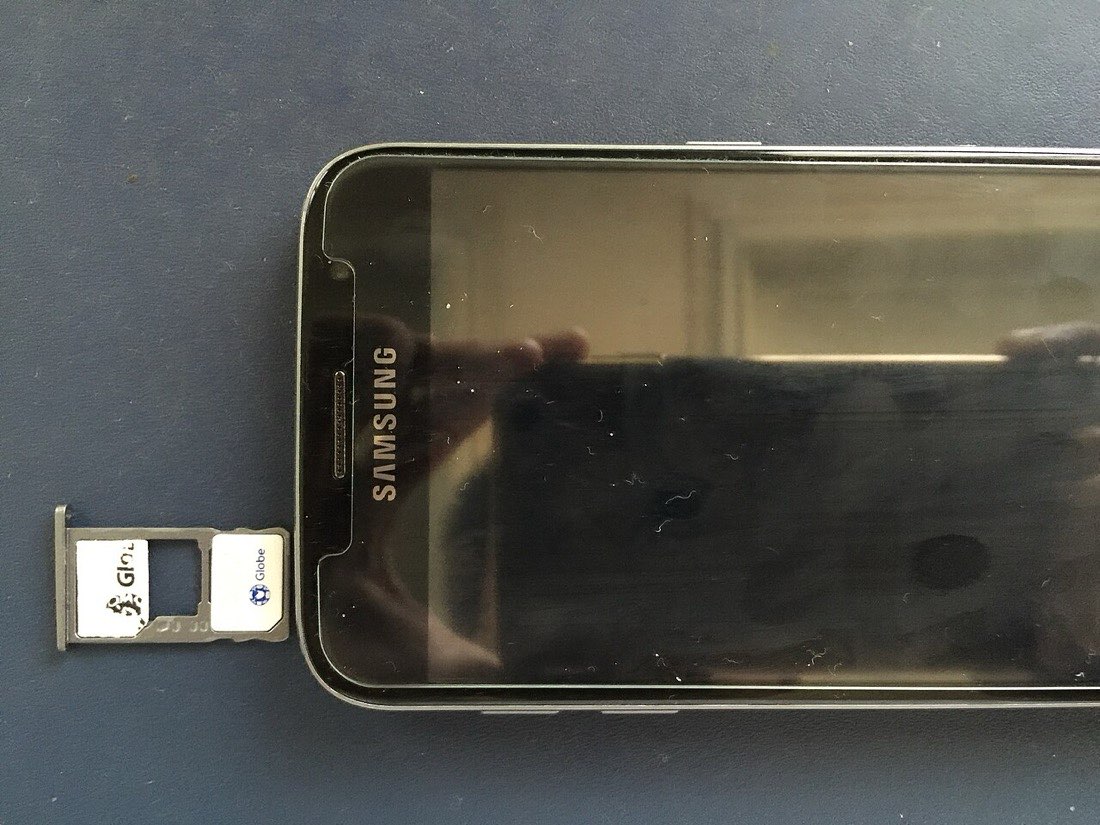
Losing years of progress when you change phones is one of the most frustrating things that can happen to a mobile gamer. It is also usually avoidable. Games store progress in different ways, and a few minutes of checking before you switch devices can save a lot of heartache.
Where games store progress
| Method | How it works | Survives a phone change? |
|---|---|---|
| Game's own account | You log in with an account the developer manages | Usually yes, on any platform the game supports |
| Platform service | Apple Game Center or Google Play Games | Usually yes, within the same platform |
| Social or email login | Linked to an external account | Usually yes |
| Device only | Saved only on the phone | Only with a device backup |
Link accounts before you need them
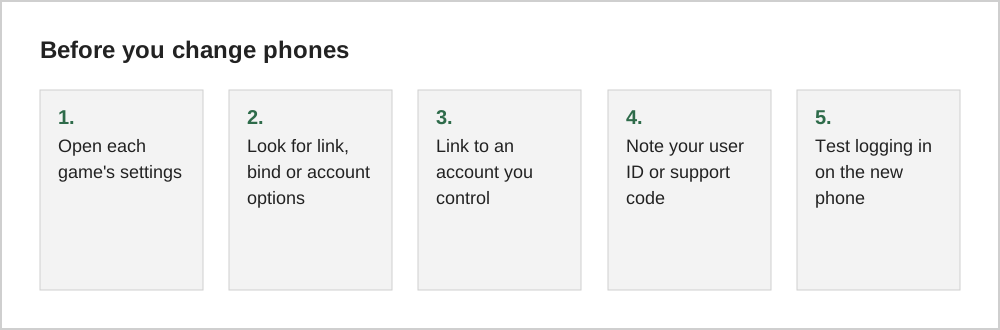
Many games start you as a "guest" without an account. Guest progress may be tied to the device. Look in the game's settings for options such as "link account", "bind account", "save to cloud" or "sign in". Linking takes a minute and is the most reliable way to protect progress.
Device backups
Both platforms can back up app data as part of a full device backup or transfer, but whether a particular game's data is included depends on how the game is built. A device backup is a useful safety net, but linking an in-game account is more dependable.
Switching between iPhone and Android
Moving between platforms is harder. Progress saved only through Apple Game Center or Google Play Games often stays on that platform. Games with their own account system or external login are more likely to transfer. Purchases made through one app store generally do not carry over to the other, although some games restore purchases through their own accounts.
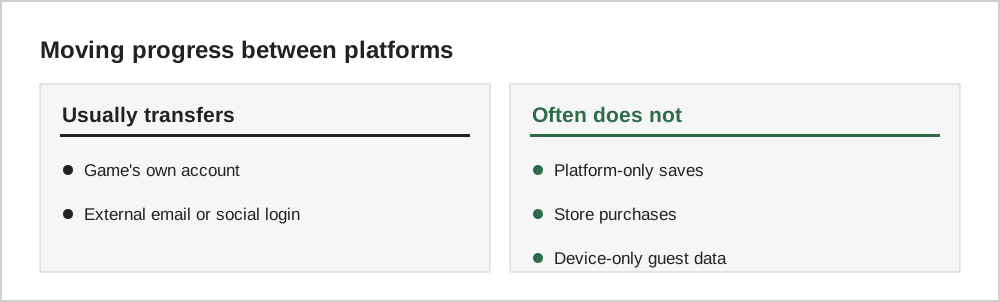
Check the game's help pages or support before switching platforms, especially for games you have spent money on.
If progress is lost
If you lose progress, contact the game's support team through its help menu or website. Include your user ID, approximate level, the date you last played, and any purchase receipts. Many developers can restore progress if you can identify your old account.
A switching-phones checklist
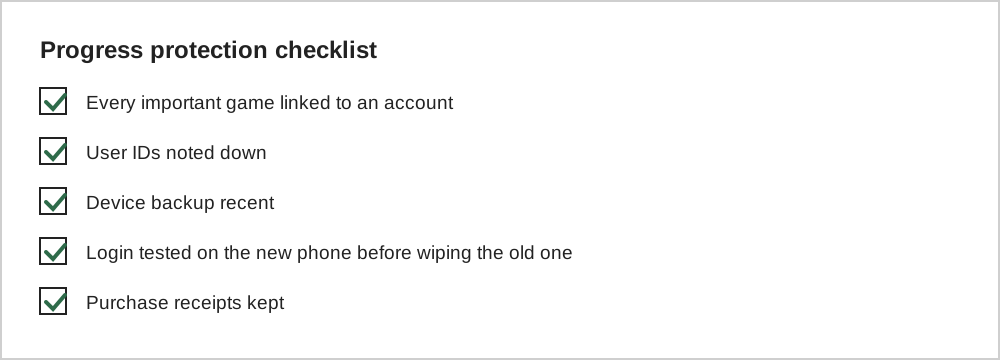
Before you move to a new phone, open each game you care about and confirm it is linked to an account, such as a publisher login, Google Play Games or Game Center. Note any transfer codes the game provides. Make sure the old phone has completed a full backup and that both phones are charged.
After setting up the new phone, install each game, sign in with the same account and check that progress, purchases and currency have arrived. Keep the old phone untouched for a few days in case something did not transfer, so you can return to it and try again.
Purchases versus progress
Purchases and progress are stored differently. Purchases are usually tied to your app store account and can be restored with a restore purchases button. Progress may be tied to a game account or stored only on the device. Knowing which is which explains why a premium unlock might transfer while a level count does not.
Common questions
Does restoring my phone from a backup restore every game?
Not necessarily. Device backups include app data only when the game supports it, and some games store progress solely on their servers or require you to log in again. Always link an account inside the game rather than relying on the backup alone.
What if I never linked my account and the old phone is gone?
Contact the game's support team as soon as possible. Provide your in-game name, approximate level, the date you last played and any purchase receipts. Support teams can sometimes identify accounts from purchase records, although recovery is not guaranteed.
Can two phones use the same game account?
Many games allow logging in on different devices, but often not at the same time. Playing on two devices simultaneously may log one out or cause sync conflicts. Check the game's help pages before sharing progress across a phone and a tablet.
The short version
Link every game you care about to an account, note your user IDs, and test logging in on your new phone before resetting the old one. Cross-platform moves need extra care, because platform-only saves and store purchases often do not transfer.